

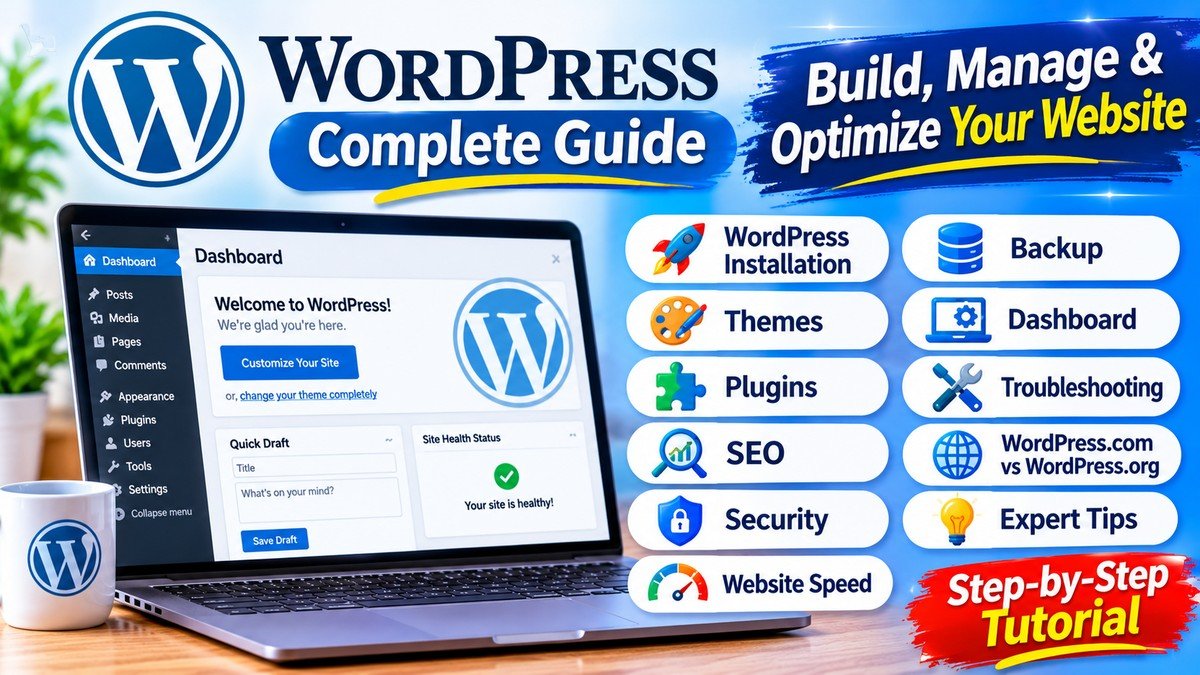
WordPress is a popular platform for building websites, publishing articles, and managing online content. Whether you want to start a personal blog, create a business website, or manage an online publication, WordPress provides flexible tools to help you build and maintain your online presence.
However, creating a successful website involves more than installing WordPress. You also need to understand web hosting, themes, plugins, website design, search engine optimization, security, backups, and troubleshooting.
This WordPress complete guide covers the essential topics beginners and website owners should understand. You will learn what WordPress is, how to create a website, how to manage the dashboard, and how to improve website performance.
1. What Is WordPress?
WordPress is a free, open-source content management system (CMS) used to create and manage websites. It allows users to publish articles, create pages, upload images, organize content, and customize website designs.
You can use WordPress to create several types of websites, including:
- Personal blogs
- Business websites
- Educational websites
- Technology websites
- News and magazine websites
- Portfolio websites
- Online stores
One of the main advantages of WordPress is its flexibility. Beginners can manage website content through a dashboard, while experienced developers can customize websites using themes, plugins, and code.
WordPress also has a large community that provides documentation, tutorials, themes, plugins, and support resources.
2. WordPress.com vs WordPress.org
Before creating a website, it is important to understand the difference between WordPress.com and WordPress.org.
Although both use WordPress software, their hosting and management arrangements are different.
WordPress.org
WordPress.org provides the open-source WordPress software. You can download it and install it through a hosting provider.
With a self-hosted WordPress website, you generally have greater control over:
- Website files and database
- Custom themes and plugins
- Website design
- Hosting environment
- Technical settings
- Website maintenance
You are also responsible for arranging hosting and managing important maintenance tasks.
WordPress.com
WordPress.com is a hosted website service. It provides hosting and website management features through its plans.
Depending on your selected plan, it may include:
- Managed hosting
- Website security features
- Backups
- Software updates
- Website customization
- Support services
Which WordPress Version Should You Choose?
Choose WordPress.org if you want greater technical control and are comfortable managing hosting and website maintenance.
Choose WordPress.com if you prefer a hosted service that handles more of the technical work.
For a detailed explanation, visit the official WordPress.org and WordPress.com comparison.
3. How to Create a WordPress Website
Creating a WordPress website becomes easier when you follow a clear process.
Step 1: Choose a Domain Name
A domain name is your website’s address. Select a name that is easy to remember, relevant to your topic, and simple to type.
Avoid confusing spellings and unnecessarily long names.
Step 2: Select WordPress Hosting
WordPress hosting provides the server space required to store your website files and database.
When choosing a hosting provider, compare:
- Server performance
- Uptime and reliability
- Customer support
- Backup availability
- Security features
- Renewal pricing
- WordPress compatibility
Do not select a hosting plan based only on its introductory price. Check its renewal cost and available resources.
Step 3: Install WordPress
Many hosting providers offer an automatic WordPress installer.
A typical installation process includes:
- Log in to your hosting account.
- Open the website management dashboard.
- Find the WordPress installation option.
- Select your domain.
- Create administrator login credentials.
- Enter your website name.
- Complete the installation.
After installation, you can usually access your website dashboard through yourdomain.com/wp-admin.
Step 4: Configure Basic Settings
Open your WordPress dashboard and review the important settings.
Set your website title, tagline, language, timezone, and preferred URL structure.
Also check your homepage display settings, discussion settings, and user registration options.
Step 5: Create Important Website Pages
Most websites need a few essential pages:
- About Us
- Contact Us
- Privacy Policy
- Terms and Conditions
- Disclaimer
Create these pages according to your website’s actual purpose and practices.
For official installation instructions, read the WordPress Getting Started Guide.
4. Understanding the WordPress Dashboard
The WordPress dashboard is the main control panel for managing your website.
When you log in, you will see different sections that help you publish content, customize your website, and manage its settings.
Important Dashboard Sections
Posts: Create and manage blog articles.
Pages: Publish permanent website information.
Media: Upload and organize images, videos, and documents.
Appearance: Manage themes, menus, and website design.
Plugins: Install and manage additional website functionality.
Users: Manage website accounts and permissions.
Settings: Configure general website options.
Comments: Review and manage visitor comments.
Understanding these sections makes WordPress website management easier and more organized.
5. WordPress Themes: Choosing the Right Website Design
A WordPress theme controls the visual appearance and layout of your website. It influences typography, colors, navigation, page layouts, and other design elements.
When choosing the best WordPress themes for your website, consider these factors:
- Responsive mobile design
- Fast loading performance
- Clean and readable layouts
- Regular updates
- Compatibility with required plugins
- Accessibility
- Useful customization options
A theme should support your website’s purpose rather than simply look attractive.
Avoid switching themes frequently without a clear reason. Before changing a theme on a live website, check whether important layouts and features will remain compatible.
You can explore available designs in the official WordPress Theme Directory.
6. WordPress Plugins: Adding Useful Features
WordPress plugins add functionality to your website without requiring you to build every feature yourself.
For example, plugins can help with search engine optimization, security, backups, caching, contact forms, and online stores.
Common WordPress Plugin Categories
SEO plugins: Help manage SEO titles, meta descriptions, and other optimization settings.
Security plugins: Provide additional website security features and monitoring.
Backup plugins: Help create copies of website files and databases.
Caching plugins: Help improve page delivery and performance.
Contact form plugins: Allow visitors to send messages through your website.
Image optimization plugins: Help reduce image file sizes.
E-commerce plugins: Add product, shopping cart, and store management features.
How to Choose the Best WordPress Plugins
Before installing a plugin, review:
- Its purpose and available features.
- Its recent update history.
- Compatibility with your WordPress version.
- Documentation and support.
- User feedback.
- Whether it duplicates an existing feature.
Install only the plugins your website needs. Too many unnecessary plugins can increase maintenance work and may create compatibility or performance problems.
Explore the official WordPress Plugin Directory.
7. How to Use WordPress to Publish Posts and Pages
WordPress provides two main content types: posts and pages.
How to Create a WordPress Post
Posts are commonly used for blog articles, tutorials, news, and regularly published information.
Follow these steps:
- Open the WordPress dashboard.
- Select Posts.
- Click Add New.
- Write a descriptive article title.
- Add useful and original content.
- Organize information using headings.
- Select an appropriate category.
- Add relevant images.
- Review the article on mobile and desktop.
- Preview and publish it.
How to Create a WordPress Page
Pages are generally used for permanent website information.
To create a page:
- Open Pages in the dashboard.
- Select Add New.
- Enter the page title.
- Add the required information.
- Format the content.
- Preview the page.
- Publish it when ready.
A well-organized website uses posts and pages for their intended purposes.
8. WordPress SEO: How to Optimize Your Website for Google
WordPress SEO involves improving website content and technical settings so search engines can understand and discover your pages.
Installing an SEO plugin alone does not guarantee higher rankings. Your content must satisfy search intent and provide useful information.
Keyword Research
Keyword research helps you understand what people search for.
For WordPress-related content, relevant search phrases include:
- WordPress Complete Guide
- What Is WordPress?
- How to Use WordPress
- How to Create a WordPress Website
- WordPress Hosting
- WordPress Themes
- WordPress Plugins
- WordPress SEO
- WordPress Security
- WordPress Website Speed
- WordPress Backup
- WordPress Dashboard
- WordPress.com vs WordPress.org
- WordPress Website Tutorial
- Best WordPress Themes
- Best WordPress Plugins
- How to Speed Up a WordPress Website
- How to Secure a WordPress Website
- WordPress Website Not Loading
- WordPress Login Not Working
- WordPress Error Troubleshooting
These are related keyword ideas, not verified search-volume or keyword-difficulty figures. Use them where they match the section’s subject and search intent.
Write SEO-Friendly Titles
Every important page should have a clear and unique SEO title.
A good title explains the topic and gives readers a reason to visit the page.
Avoid repeating the same keyword unnecessarily or using misleading claims.
Write Useful Meta Descriptions
A meta description summarizes the page in search results.
Write a unique description that accurately explains the content. Include the main topic naturally, but do not treat meta descriptions as a guaranteed ranking factor.
Use Proper Heading Structure
Organize your content with a clear H1 title, descriptive H2 sections, and relevant H3 subsections.
Headings should help readers understand the structure of your article.
Add Internal Links
Internal links connect related pages on your website.
For example, a WordPress security section can link to a detailed cybersecurity article. A section about website testing can link to a relevant visual testing guide.
Use descriptive anchor text so visitors understand what they will find after clicking.
Add Relevant External Links
External links can help readers access reliable information.
For WordPress articles, official documentation is a useful starting point.
Avoid adding unrelated links simply to increase the number of external links.
Optimize Images
Use descriptive image file names and meaningful alternative text.
Compress images before uploading them and use suitable dimensions to avoid unnecessarily large files.
Create an XML Sitemap
An XML sitemap helps search engines discover important website URLs.
Many WordPress SEO plugins can generate a sitemap automatically. Check that it is accessible and submit it through Google Search Console.
Monitor Website Performance
Google Search Console helps you monitor:
- Search impressions
- Search clicks
- Search queries
- Average search positions
- Page indexing
- Sitemap status
- Security issues and manual actions
Use these reports to identify problems and understand how your website performs in Google Search.
For further information, read Google’s SEO Starter Guide.
9. How to Improve WordPress Website Speed
Website speed is important for visitors because slow pages can make browsing frustrating.
You can improve WordPress website speed by following these practices:
- Choose suitable and reliable hosting.
- Use a lightweight theme.
- Compress large images.
- Configure an appropriate caching solution.
- Remove unnecessary plugins.
- Reduce unnecessary scripts and animations.
- Keep WordPress and plugins updated.
- Avoid oversized images and videos.
- Test important pages on mobile devices.
- Monitor performance regularly.
Use Google PageSpeed Insights to test your website and identify possible performance improvements.
Do not install multiple caching or optimization plugins without checking whether their features overlap.
10. How to Secure a WordPress Website
Website security protects your content, administrator accounts, and visitors.
Although no website can be guaranteed completely secure, good maintenance practices can reduce common risks.
Follow these WordPress security tips:
- Use strong and unique passwords.
- Enable HTTPS with a valid SSL certificate.
- Keep WordPress updated.
- Update themes and plugins.
- Remove unused software.
- Limit administrator permissions.
- Use trusted themes and plugins.
- Maintain regular backups.
- Monitor unusual account activity.
- Review hosting security features.
For additional online safety information, read our Cybersecurity Tips Guide.
11. WordPress Backup: Why Is It Important?
A WordPress backup is a copy of your website that can help you recover information after an unexpected problem.
A complete backup should consider:
- WordPress website files
- Uploaded images and media
- Themes and plugins
- Website database
- Important configuration files
Check whether your hosting provider offers automatic backups. You may also use a suitable backup plugin.
Keep backup copies in a separate secure location when possible. Check your backup schedule and learn how restoration works before you need it.
A backup is useful only when it can be restored successfully.
12. WordPress Website Not Loading: Common Causes and Fixes
A WordPress website may stop loading because of hosting problems, domain configuration, SSL issues, plugin conflicts, or server errors.
Try these basic checks:
- Open your hosting dashboard and check server status.
- Confirm that your domain is active.
- Check whether your SSL certificate is working.
- Review recent plugin or theme changes.
- Check for hosting resource limits.
- Contact your hosting provider if the server is unavailable.
If the website stopped working after a recent change, investigate that change first.
13. WordPress Login Not Working: How to Troubleshoot
If you cannot access your WordPress dashboard, first confirm that you are using the correct login address and account credentials.
Try these checks:
- Confirm your username and password.
- Check whether Caps Lock is enabled.
- Use the password recovery option.
- Check whether a security feature is restricting login attempts.
- Review recent changes to login-related plugins.
- Contact your hosting provider if necessary.
Do not share administrator passwords with other people.
14. WordPress Error Troubleshooting
WordPress errors can occur because of plugin conflicts, theme problems, server configuration, incorrect settings, or unavailable resources.
Here are some common problems.
WordPress 404 Error
A 404 error means the requested page could not be found.
Check the URL, confirm that the page exists, and review permalink settings.
WordPress Plugin Not Working
A plugin may have a compatibility issue or conflict with another plugin or theme.
Review recent updates and consult the plugin’s official documentation before making changes.
WordPress Images Not Showing
Check whether the image file exists, whether its URL is correct, and whether a recent migration or optimization change affected the media files.
WordPress Website Running Slowly
Review hosting performance, image sizes, caching, scripts, and plugin activity.
Use a performance testing tool to identify the main problem before changing settings.
WordPress Admin Dashboard Not Loading
Check hosting availability, login restrictions, recent updates, and possible plugin or theme conflicts.
If you cannot identify the cause, ask your hosting provider for help.
15. WordPress Maintenance Checklist
Regular maintenance helps keep your website organized and reliable.
Use this checklist:
- [ ] Update WordPress software.
- [ ] Update active themes.
- [ ] Update installed plugins.
- [ ] Remove unused plugins and themes.
- [ ] Check website backups.
- [ ] Review broken links.
- [ ] Test website navigation.
- [ ] Check contact forms.
- [ ] Review Search Console reports.
- [ ] Test website speed.
- [ ] Review user permissions.
- [ ] Confirm that HTTPS works.
Before major changes, create a fresh backup so you have a recovery option if something goes wrong.
Frequently Asked Questions About WordPress
What is WordPress used for?
WordPress is used to create and manage blogs, business websites, educational websites, portfolios, news websites, and online stores.
How do I use WordPress as a beginner?
Start by learning the dashboard, creating pages and posts, selecting a theme, installing necessary plugins, and configuring basic settings.
How can I create a WordPress website?
Choose a domain and hosting provider, install WordPress, configure basic settings, select a theme, create important pages, and publish useful content.
Is WordPress free?
The WordPress software from WordPress.org is free and open source. However, self-hosted websites generally require hosting and domain registration. Some themes and plugins also offer paid features.
Which are the best WordPress themes?
The best theme depends on your website’s purpose. Look for responsive design, good maintenance, accessibility, compatibility, and suitable performance.
Which are the best WordPress plugins?
The right plugins depend on your requirements. Review their features, updates, compatibility, support, and security before installation.
Is WordPress SEO-friendly?
WordPress provides useful content management features for SEO. However, rankings depend on content quality, technical setup, search intent, competition, and other factors.
How can I speed up a WordPress website?
Optimize images, use suitable hosting, configure caching, reduce unnecessary scripts, and remove plugins that your website does not need.
How can I secure my WordPress website?
Use strong passwords, HTTPS, updated software, trusted plugins, limited user permissions, and regular backups.
What should I do if my WordPress website is not loading?
Check hosting availability, domain settings, SSL configuration, recent website changes, and possible plugin conflicts.
Why is my WordPress login not working?
Common causes include incorrect credentials, login restrictions, security settings, and plugin conflicts. Start with password recovery and check your hosting account if needed.
What is the difference between WordPress posts and pages?
Posts are generally used for regularly published articles, while pages are used for permanent information such as About, Contact, and Privacy Policy.
Conclusion
WordPress provides a flexible way to create and manage websites, but building a successful website requires more than choosing a theme and installing plugins.
Understanding WordPress hosting, website design, content publishing, SEO, speed optimization, security, backups, and troubleshooting can help you manage your website more effectively.
Start with the essential settings, publish original and useful content, keep your software updated, and monitor your website regularly. By improving your website step by step, you can create a better experience for visitors and build a stronger online presence.


